
- rustdesk
- Jonathan Haack
- Haack's Networking
- webmaster@haacksnetworking.org
——————————————-
rustdesk
This tutorial is for Debian users who want to create a self-hosted RustDesk instance manually. This covers installing the relay server (hbbr), the signaling server (hbbs), and the gohttp server (for client downloads and/or configs). After installing these services, I go through how to setup each systemd unit and, additionally, cover how to drop the gohttp server behind a reverse proxy. This tutorial assumes you have a hardened VM and/or VPS ready with a LAMP stack in place. If not, please head to Apache Survival first. If you are ready to go, let's start by configuring the firewall:
sudo ufw allow 22/tcp
sudo ufw allow 80/tcp
sudo ufw allow 443/tcp
sudo ufw allow 21114:21119/tcp
sudo ufw allow 21116/udp
sudo ufw enable
Let's now download the latest version of rustdesk, unzip it, and then copy the binaries into the standard location inside /opt/rustdesk:
cd /tmp
wget https://github.com/rustdesk/rustdesk-server/releases/download/1.1.14/rustdesk-server-linux-amd64.zip
unzip rustdesk-server-linux-amd64.zip
sudo mkdir -p /opt/rustdesk /var/log/rustdesk
sudo cp amd64/hbbs amd64/hbbr amd64/rustdesk-utils /opt/rustdesk/
sudo chmod +x /opt/rustdesk/hbbs /opt/rustdesk/hbbr /opt/rustdesk/rustdesk-utils
After the relay and signaling servers are installed and copied to the standard locations, we can download and install the gohttp server:
sudo mkdir -p /opt/gohttp /var/log/gohttp
cd /tmp
wget https://github.com/codeskyblue/gohttpserver/releases/download/1.3.0/gohttpserver_1.3.0_linux_amd64.tar.gz
tar -xzf gohttpserver_1.3.0_linux_amd64.tar.gz
sudo cp gohttpserver /opt/gohttp/
sudo chmod +x /opt/gohttp/gohttpserver
We can now navigate to our dedicated rustdesk directory and generate our keypair:
cd /opt/rustdesk
sudo ./rustdesk-utils genkeypair
sudo chmod 600 id_ed25519
cat /opt/rustdesk/id_ed25519.pub
Make a note of the public key somewhere in your secure notes. That's your API key for configuring clients to use your self-hosted relay. We now need to create our systemd units for each of the three services. Let's start with hbbs, or the signaling server. Open up sudo nano /etc/systemd/system/rustdesksignal.service and drop inside:
[Unit]
Description=Rustdesk Signal Server

[Service]
Type=simple
LimitNOFILE=1000000
ExecStart=/opt/rustdesk/hbbs -r hackingclub.org:21117
WorkingDirectory=/opt/rustdesk/
User=root
Group=root
Restart=always
StandardOutput=append:/var/log/rustdesk/signalserver.log
StandardError=append:/var/log/rustdesk/signalserver.error
RestartSec=10

[Install]
WantedBy=multi-user.target
Next, let's configure the relay server, or hbbr. To do that, open up sudo nano /etc/systemd/system/rustdeskrelay.service and drop the following inside:
[Unit]
Description=Rustdesk Relay Server

[Service]
Type=simple
LimitNOFILE=1000000
ExecStart=/opt/rustdesk/hbbr
WorkingDirectory=/opt/rustdesk/
User=root
Group=root
Restart=always
StandardOutput=append:/var/log/rustdesk/relayserver.log
StandardError=append:/var/log/rustdesk/relayserver.error
RestartSec=10

[Install]
WantedBy=multi-user.target
Finally, let's create the systemd unit for the gohttp server. Please note that the unit contains a section to password protect the webroot so only authorized staff can access the client configs in the gohttp server. Adjust that to a secure value. Let's open up sudo nano /etc/systemd/system/gohttpserver.service and drop the following inside:
[Unit]
Description=Go HTTP Server

[Service]
Type=simple
LimitNOFILE=1000000
ExecStart=/opt/gohttp/gohttpserver -r ./public --port 8000 --auth-type http --auth-http admin:STRONG_PASSWORD_HERE
WorkingDirectory=/opt/gohttp/
User=root
Group=root
Restart=always
StandardOutput=append:/var/log/gohttp/gohttpserver.log
StandardError=append:/var/log/gohttp/gohttpserver.error
RestartSec=10

[Install]
WantedBy=multi-user.target
We can now enable all the units and start the services:
sudo systemctl daemon-reload
sudo systemctl enable rustdesksignal rustdeskrelay gohttpserver
sudo systemctl start rustdesksignal rustdeskrelay gohttpserver
sudo systemctl status rustdesksignal rustdeskrelay gohttpserver
We can now drop the gohttp server behind an apache reverse proxy. To do that, let's install certbot, cut a certificate, and enable the modules. To make things easier for yourself, open up /etc/apache2/sites-enabled/000-default.conf and uncomment and change ServerName to domain.com of your instance. Restart apache sudo systemctl restart apache2 and then do the following:
sudo apt install certbot letsencrypt python3-certbot-apache
sudo certbot --authenticator standalone --installer apache -d domain.com --pre-hook "systemctl stop apache2" --post-hook "systemctl start apache2"
sudo a2enmod proxy proxy_http proxy_wstunnel rewrite headers ssl
You will now have to enabled vhosts in apache, namely, 000-default.conf and something like 000-default-le-ssl.conf or something similar. These are running stock configurations, not reverse proxies, however. So, now that the certificate is cut, simply swap the contents with some reverse proxy configs instead. For http, use something like:
<VirtualHost *:80>
  ServerName hackingclub.org
  ServerSignature Off
  ProxyPreserveHost On
  AllowEncodedSlashes NoDecode

  <Location />
    Require all granted
    ProxyPassReverse http://127.0.0.1:8000
    ProxyPassReverse http://hackingclub.org
  </Location>

  RewriteEngine on
  RewriteCond %{DOCUMENT_ROOT}/%{REQUEST_FILENAME} !-f [OR]
  RewriteCond %{REQUEST_URI} ^/uploads/.*
  RewriteRule .* http://127.0.0.1:8000%{REQUEST_URI} [P,QSA,NE]

  ErrorDocument 404 /404.html
  ErrorDocument 422 /422.html
  ErrorDocument 500 /500.html
  ErrorDocument 502 /502.html
  ErrorDocument 503 /503.html

  LogFormat "%{X-Forwarded-For}i %l %u %t \"%r\" %>s %b" common_forwarded
  ErrorLog /var/log/apache2/hackingclub.org_error.log
  CustomLog /var/log/apache2/hackingclub.org_forwarded.log common_forwarded
  CustomLog /var/log/apache2/hackingclub.org_access.log combined env=!dontlog
  CustomLog /var/log/apache2/hackingclub.org.log combined

  RewriteCond %{SERVER_NAME} =hackingclub.org
  RewriteRule ^ https://%{SERVER_NAME}%{REQUEST_URI} [END,NE,R=permanent]
</VirtualHost>
For the https virtual host, use something like:
<VirtualHost *:443>
  SSLEngine on
  SSLProtocol all -SSLv2
  SSLHonorCipherOrder on
  SSLCipherSuite "ECDH+AESGCM:DH+AESGCM:ECDH+AES256:DH+AES256:ECDH+AES128:DH+AES:ECDH+3DES:DH+3DES:RSA+AESGCM:RSA+AES:RSA+3DES:!aNULL:!MD5:!DSS"
  Header add Strict-Transport-Security: "max-age=15768000;includeSubdomains"
  SSLCompression Off

  ServerName hackingclub.org
  ServerSignature Off
  ProxyPreserveHost On

  <FilesMatch ".+\.ph(ar|p|tml)$">
    SetHandler "proxy:unix:/run/php/php8.2-fpm.sock|fcgi://localhost"
  </FilesMatch>

  AllowEncodedSlashes NoDecode

  <Location />
    Require all granted
    ProxyPassReverse http://127.0.0.1:8000
    ProxyPassReverse http://hackingclub.org
  </Location>

  RewriteEngine on
  RewriteCond %{DOCUMENT_ROOT}/%{REQUEST_FILENAME} !-f [OR]
  RewriteCond %{REQUEST_URI} ^/uploads/.*
  RewriteRule .* http://127.0.0.1:8000%{REQUEST_URI} [P,QSA,NE]

  RequestHeader set X_FORWARDED_PROTO 'https'
  RequestHeader set X-Forwarded-Ssl on

  ErrorDocument 404 /404.html
  ErrorDocument 422 /422.html
  ErrorDocument 500 /500.html
  ErrorDocument 502 /502.html
  ErrorDocument 503 /503.html

  LogFormat "%{X-Forwarded-For}i %l %u %t \"%r\" %>s %b" common_forwarded
  ErrorLog /var/log/apache2/hackingclub.org_error.log
  CustomLog /var/log/apache2/hackingclub.org_forwarded.log common_forwarded
  CustomLog /var/log/apache2/hackingclub.org_access.log combined env=!dontlog
  CustomLog /var/log/apache2/hackingclub.org.log combined

  Include /etc/letsencrypt/options-ssl-apache.conf
  SSLCertificateFile /etc/letsencrypt/live/hackingclub.org/fullchain.pem
  SSLCertificateKeyFile /etc/letsencrypt/live/hackingclub.org/privkey.pem
</VirtualHost>
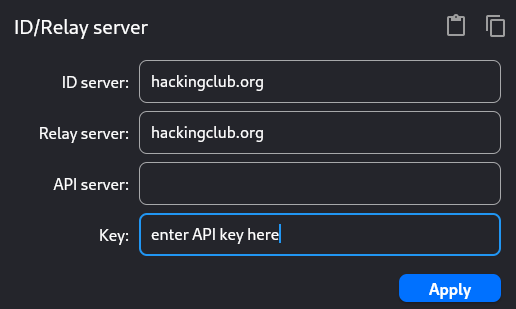
Check your configs with apache2ctl configtest and then restart the service sudo systemctl restart apache2. Once everything is working properly, we can now switch to setting up clients. On each RustDesk client, you go to Settings > Network > Unlock and edit the following:
- ID Server: hackingclub.org
- Relay Server: hackingclub.org
- API Server: https://hackingclub.org
- Key: API Key from above
Here's an example of what this section looks like. Note that entering a value in API Server is moot - that's only supported by the premium/paid version. It does not hurt anything to add the value there, however.
Enter the same values on your primary workstation. Once that's done for your workstation and at least one client, you can then specify the ID your “Control Remote Desktop” section and you are all set. Of course, there are many settings inside RustDesk, such as “Always connect via relay” and also how you choose to configure the “Password”, i.e., whether it is permanent or one-time. These are decisions that will be decided by your use-case, as with others, but these are two good areas to look at post-installation. For updates, we do the following:
sudo systemctl stop rustdesksignal rustdeskrelay gohttpserver
cd /tmp
wget https://github.com/rustdesk/rustdesk-server/releases/download/NEW_VERSION/rustdesk-server-linux-amd64.zip
unzip -o rustdesk-server-linux-amd64.zip
sudo cp amd64/hbbs amd64/hbbr /opt/rustdesk/
sudo chmod +x /opt/rustdesk/hbbs /opt/rustdesk/hbbr
sudo systemctl start rustdesksignal rustdeskrelay gohttpserver
sudo systemctl status rustdesksignal rustdeskrelay gohttpserver
That's basically it. The new binaries are executed and controlled by the pre-established systemd units, so you merely replace the binaries and make them executable and you are good to go. If the gohttp server has been updated, similarly:
sudo systemctl stop gohttpserver
cd /tmp
wget https://github.com/codeskyblue/gohttpserver/releases/download/NEW_VERSION/gohttpserver_NEW_VERSION_linux_amd64.tar.gz
tar -xzf gohttpserver_NEW_VERSION_linux_amd64.tar.gz
sudo cp gohttpserver /opt/gohttp/
sudo chmod +x /opt/gohttp/gohttpserver
sudo systemctl start gohttpserver
sudo systemctl status gohttpserver
The password is specified in the systemd unit, which remains unchanged. Just make sure to restart the service as directed above and it will invoke that same value, but on the updated go server. You should now be fully up to date. Hope this helps others wanting to avoid using the automated script / understand all the moving parts of the instance. Happy hacking!
— oemb1905 2026/01/01 18:24


