
- nm-bridging
- Jonathan Haack
- Haack's Networking
- webmaster@haacksnetworking.org
nm-bridging
Create the Bridge on enp1s0 [10.30.30.0/24 subnet]
- Open
nm-connection-editor - Click +, select Bridge, give the bridge a name
- In the bridge, do the following:
- Assign interface name, i.e., br0
- Select DHCP for ipv4 and ipv6
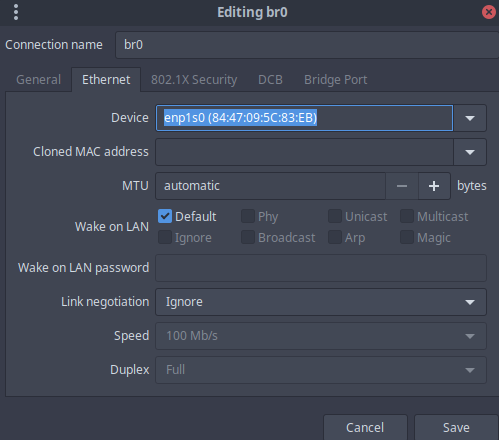
- Under the Bridge section, Add Ethernet connection, specify the bridged interface, e.g., enp1s0
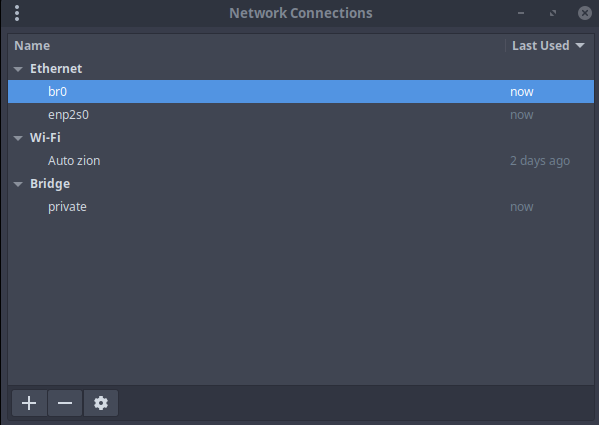
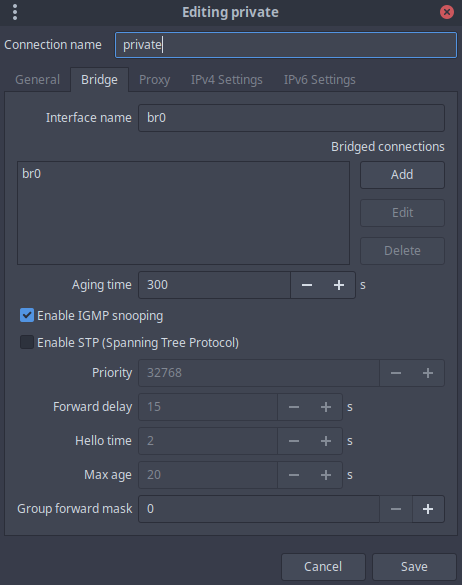
This creates a bridge (virtual switch) on private subnet 10.30.30.0/24 and then also creates an interface, br0, which connects to this virtual switch. That br0 interface will now show up in Ethernet in nm-connection-editor and your router will assign it an address via dhcp. One can now attach virtual appliances to br0 and have them be reachable by other nodes on the network. This is essential for development and testing, NAT is not an option. Default router advertisement DNS servers are used since this is the private network and those DNS servers are desirable.
Raise the interface for enp2s0 [172.30.30.0/24 subnet]
- Open
nm-connection-editor - Under IPv4 and IPv6, enter DHCP addresses only
- Specify the desired DNS servers in both IPv4 and IPv6 (use the 10.30.30.0/24 ones)
- Under IPv4 and IPv6, click Routes, and click Ignore automaticall obtained routes
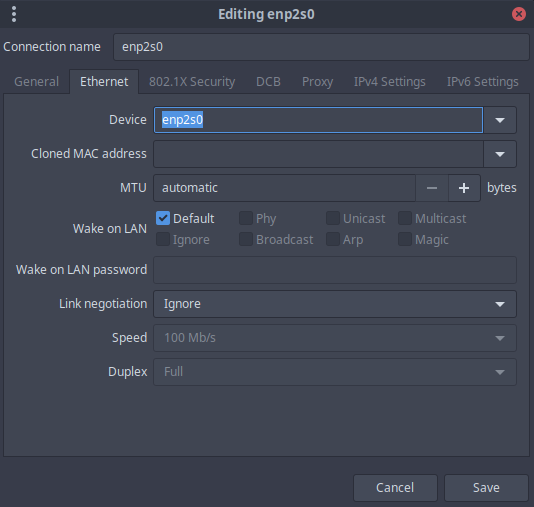
This raises a second interface on the 172.30.30.0/24 subnet, which is the public subnet. This is essential because the primary workstation should be able to reach all nodes on the network without a VPN or daisy chaining via ssh. However, the guest subnet has two different and highly restricted DNS servers that use dnsmasq via pihole, with lots of layer7 domain filtering. If we allow this interface to accept router advertisements, it will inherit those restricted and non-desired DNS servers. Therefore, we pick “address only” which allows us to manually choose the DNS servers. Accordingly, we pick the private DNS servers so that there's resolv.conf is populated with these DNS servers. We additionally specify for this interface to ignore all router advertisements to avoid any chance that NetworkManager might write over resolv.conf with non-desired information.
Conclusion
This allows me to use Cinnamon on my primary Debian 13 Trixie workstation without disabling NetworkManager. I'm used to making manual configurations, but I was unable to get anything working with dhcpcd. So as to avoid installing the legacy osc-dhcp-server as a work around - and like my other office PC has - I decided to embrace Cinnamon's GUI and find a way to make it perform. NetworkManager, and its front-end, nm-connection-editor, have their own embedded dhcp client. Getting it to work allows me to have a “kludge-free” interface setup that still allows me to cut development virtual appliances, reach both subnets in the home office without a VPN or published route, etc. So far, it's rock solid.
— oemb1905 2026/01/12 00:59


