
This is an old revision of the document!
- dnshijacks
- Jonathan Haack
- Haack's Networking
- webmaster@haacksnetworking.org
DNS Hijacks
This tutorial is for owner's of cameras and/or OIT devices that want to monitor/secure their network from the device. As is well known, these devices 'phone home' and/or use built-in DNS to ensure connectivity but in so doing, bypass LAN policies and/or security. This tutorial assumes you already have a functioning openWRT-based LAN or equivalent. In my case, I use a pair of Flint 2 GL.Inet routers, with one routing and the other acting as a dump AP. Once you have that in place, the first thing to do is identify the cameras and assign them static IPS. You can do this in LuCI > Network > DHCP > Static Leases. Although I prefer using the MAC addresses for the remaining openWRT rules, the static addresses are indispensable for using tcpdump to monitor traffic during setup.

After your statics are set, the next task is to stop the cameras or OIT devices from directly querying external DNS servers. Most devices that do this directly contact the upstream DNS IP on either port 53 or port 853. It is true that 853 can be used for DoT - but that's not what we are stopping right now. Here, we are stopping alternate port direct udp DNS queries which can also use 853. To stop outgoing packets on 53 and 853, we use openWRT's port forward logic in the firewall. To get there, navigate to LuCI > Network > Firewall > Port Forwards. Once in that section, click Add and enter something like the following:
- Name: Camera1
- Restrict to address family: ipv4 #use what your devices use
- Protocol: TCP + UDP
- Source zone: res #pick your zone/subnet/vlan, ideally dedicated for cams/OIT devices
- External port: 53
- Destination zone: res
- Internal IP address: 172.66.66.150 (ns5.haacksnetworking.org) #redirects traffic to my DNS server, a pihole + unbound
- Internal port: 53
- Advanced Settings
- Source MAC address: 80:48:2C:44:C7:7D 80:48:2C:41:71:78 80:48:2C:41:69:FF 80:48:2C:46:0E:C4
Once this is done, duplicate the rule and change the external port to 853. If your devices listen on ipv6, make a separate ipv6 rule with a separate ipv6 DNS target. In my case, the v4 Wyze cameras I used only accepted ipv4 addresses. I checked on the router to be sure with ip -6 neigh show dev br-lan.179. Once you have built your port forwards, you should have something similar to the following:
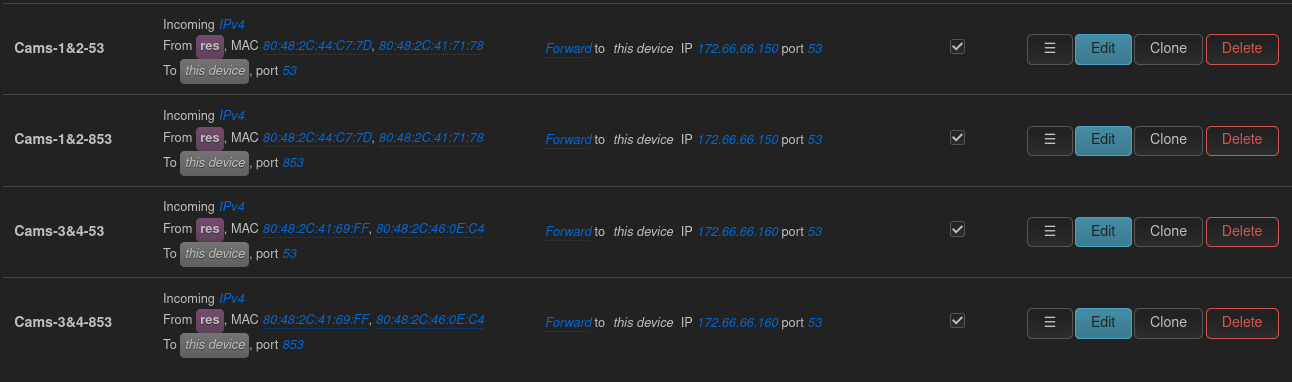
In the openWRT tutorial linked at the top, you will see that I use two nameservers for each vlan/subnet. Each of those nameservers is a pihole+unbound and each has an ipv4 and ipv6 address that I assign in openWRT and which get pushed to clients for DNS. This means each vlan/subnet has 4 DNS IP addresses pushed out. Having two is helpful if you are updating one and/or one of them goes down for a backup, etc. Normally the secondary nameserver gets few hits, only backing up the other when/if needed. Since we are hijacking DNS packets, however, I figured why not split up the load, so in the picture above, you will see that I sent two cameras packets to ns5 .150 and the other two cameras to ns6 .160. When I first placed the cameras on the vlan/subnet, there were no urls in the pihole's dashboard from the cameras. After putting these rules in place, you immediately saw the time servers, APIs for loggin in, and all other requests populating nicely. Okay, now that we are hijacking outgoing udp53 and udp853, let's ensure that there's not an embedded DNS over https, or DoH that can bypass those forwards. To do that, we setup a traffic rule. Let's go to LuCI > Network > Firewall > Traffic Rules. In there, let's set up something like the following:
- Name: `Camera DoH`
- Family: IPv4 and IPv6
- From: zone `res`
- Specify the MACs: 80:48:2C:41:69:FF 80:48:2C:41:71:78 80:48:2C:44:C7:7D 80:48:2C:46:0E:C4
- To: zone `wan`
- IPs to block: 1.1.1.1 1.0.0.1 8.8.8.8 8.8.4.4 9.9.9.9 149.112.112.112 94.140.14.14 94.140.15.15 208.67.222.222 208.67.220.220 185.228.168.9 185.228.169.9 76.76.2.0 76.76.10.0 45.90.28.0 45.90.30.0
- Ports: 443 853
- Action: Drop #or Reject
Once that's done, you should have a rule that looks something like this:

Now that everything is setup, you need to ensure that there are no leaks. This is easily done with tcpdump on the router. There's many different tests we can run, for example, we can tcpdump the static IPs to see what requests they are making on port 53/853. This is helpful during initial setup because it can help you see what requests the cams/OIT device is making so you know which approach to take and/or which ports/IPs to block. You do this by:
tcpdump -ni br-lan.179 host 172.66.66.105 or host 172.66.66.106 or host 172.66.66.107 or host 172.66.66.108 | egrep '(\.53 |\.853 )'
This command above will pull out all 53 or 853 outgoing packets and you can see what upstream DNS the cams/OIT device is using. When I began this tutorial, I ran this command first and you could clearly confirm that online reports were correct and the Wyze v4 cams were sending outgoing udp/53 requests to 8.8.8.8 and 8.8.4.4, which are Google's public DNS servers. Nevertheless, once everything is setup, you want to make sure there are no leaks. The way to do that is by running tcpdump on the wan/wan6 interface to see if anything we hijacked or dropped is sneaking out. First, confirm the wan/wan6 interface name by running uci get network.wan.device and uci get network.wan6.device. On the Flint 2, these are both eth1, so then you construct your tcpdump command as follows:
tcpdump -ni eth1 udp port 53 and '( host 8.8.8.8 or host 8.8.4.4 or host 1.1.1.1 or host 1.0.0.1 or host 9.9.9.9 )'
tcpdump -ni eth1 '(tcp port 443 or tcp port 853 or udp port 853)' and '(host 8.8.8.8 or host 8.8.4.4 or host 1.1.1.1 or host 1.0.0.1 or host 9.9.9.9 )'
tcpdump -ni eth1 ip6 and udp port 53 and '( host 2001:4860:4860::8888 or host 2001:4860:4860::8844 or host 2606:4700:4700::1111 or host 2606:4700:4700::1001 or host 2620:fe::fe )'
tcpdump -ni eth1 ip6 and '(tcp port 443 or tcp port 853 or udp port 853)' and '( host 2001:4860:4860::8888 or host 2001:4860:4860::8844 or host 2606:4700:4700::1111 or host 2606:4700:4700::1001 or host 2620:fe::fe )'
Or, run all at once:
tcpdump -ni eth1 '
  (
    udp port 53 or
    tcp port 443 or
    tcp port 853 or
    udp port 853
  ) and (
    host 8.8.8.8 or host 8.8.4.4 or
    host 1.1.1.1 or host 1.0.0.1 or
    host 9.9.9.9 or
    host 2001:4860:4860::8888 or host 2001:4860:4860::8844 or
    host 2606:4700:4700::1111 or host 2606:4700:4700::1001 or
    host 2620:fe::fe
  )
'
Or, to just check the cameras (use static ips on the restricted zone) traffic in entirety:
tcpdump -i br-lan.179 host 172.66.66.105 or host 172.66.66.106 or host 172.66.66.107 or host 172.66.66.108 -n
Or, just check outbound 53 / 853, direct udp:
tcpdump -i br-lan.179 host 172.66.66.105 or host 172.66.66.106 or host 172.66.66.107 or host 172.66.66.108 -n | egrep '(\.53 |\.853 )'
Or, check 443 and 853 while stripping the okay stun/turn they need for the app:
tcpdump -i br-lan.179 host 172.66.66.105 or host 172.66.66.106 or host 172.66.66.107 or host 172.66.66.108 -n | egrep -v '(\.443|\.3478|\.8883|ARP)'
After catching some leaks due to destination zone being set on 53/853 direct udp, revised this command to monitor WAN with time stamps to see what gets by and when:
tcpdump -ni eth1 -vvv -tttt '
  (host 172.66.66.105 or host 172.66.66.106 or host 172.66.66.107 or host 172.66.66.108)
  and not (
    udp port 123 or
    (udp portrange 10000-65535 and not udp port 53 and not udp port 853)
  )
'
You have to run tcpdump and bird's eye look at the pihole dashboard initially. You will suddenly see that the direct DNS udp/53 it runs to 8.8.8.8 and 8.8.4.4 that are widely reported are now being intercepted. You confirm on tcpdump by checking the wan outgoing … to see if anything gets by. You can tell on the piholes because initially you won't see any domains, but as soon as you set up the forwards correctly, you will get a slew of domains popping off:
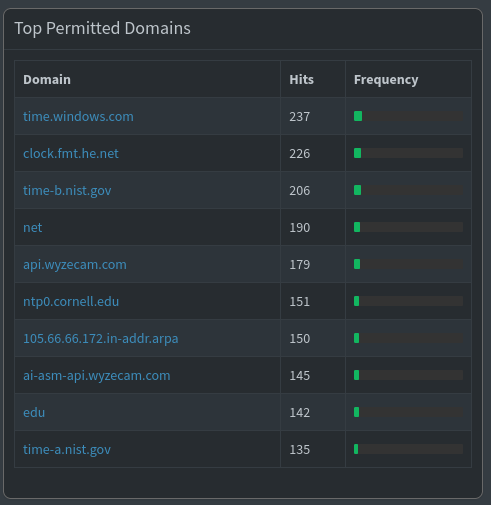
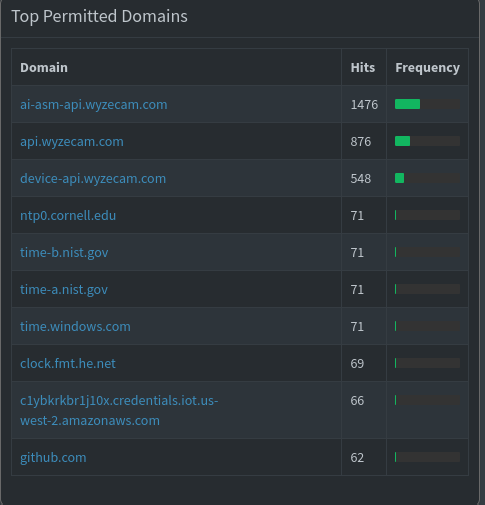
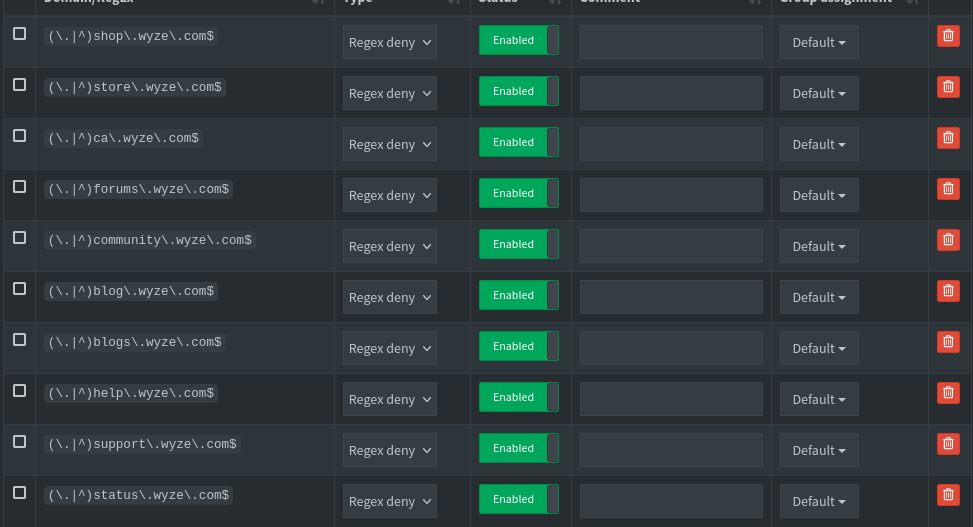
For whatever reason, the cams are using FOUR timeservers. I left the .gov one and blocked the rest. No issues. You block those in the domain section of the piholes. Also, before I began, I blocked the following in pihole's domain section. I got these from forums / online resources. So far, the cams have not pinged any of these, but better safe than sorry:
Alright, this is an improved version of my prior setup, dedicated to Bender.
Notes:
- Noticed that openWRT was missing some direct outgoing due to des zone being set, removed
- Added
c1ybkrkbr1j10x.credentials.iot.us-west-2.amazonaws.comto blocklist - Experimenting with changing the des zone to wan instead - nevermind, blank better (includes wan)
— oemb1905 2026/09/06 02:56


