
This is an old revision of the document!
- cockpit
- Jonathan Haack
- Haack's Networking
- webmaster@haacksnetworking.org
cockpit
Introduction
This tutorial covers how to set up Cockpit on Debian. The approach here assumes that Cockpit will be installed on bare metal being used in production, with only ssh exposed. This tutorial assumes you already have a sufficiently hardened and provisioned VPS/VM w/ a LAMP stack and some associated A/AAAA records ready to go. If not, go read Apache Survival first and come back. If you are ready to go, then this tutorial will cover:
- Installation of Cockpit + Preferred Packages
- Setup of Apache Reverse Proxy; including setup for “with” and “without” 80/443 exposed/listening
- Localhost w/ FoxyProxy
- Official Cockpit Flatpak
Install Cockpit & Configure Apache
Let's install cockpit and then create an apache virtual host for it. After that, we will cut the cert, then swap the vhost configs with the reverse proxy config. Let's enable TLS modules and headers.
sudo apt install cockpit*
sudo apt remove cockpit-389-ds
sudo a2enmod ssl
sudo a2enmod headers
After that, open sudo nano /etc/apache2/sites-available/domain.com.conf and change the ServerName field, and make a placeholder directory at /var/www/domain.com/public_html and make sure the WebRoot points properly to that directory. Add the vhost with a2ensite domain.com.conf and restart the service systemctl restart apache2. Once basic http is functional, build the cert:
sudo apt install certbot letsencrypt python3-certbot-apache
sudo certbot --authenticator standalone --installer apache -d domain.com --pre-hook "systemctl stop apache2" --post-hook "systemctl start apache2"
The cert is now built and domain.com should now show the “green lock” and have TLS enabled. If not, check your config and debug with sudo apache2ctl configtest and resolve that issue before proceeding. Once that's done and the page resolves with TLS, enable the proxy and swap the configs.
sudo a2enmod proxy_http
sudo a2enmod proxy
sudo a2enmod rewrite
sudo a2enmod proxy_wstunnel
apache2ctl configtest
systemctl reload apache2
Open the domain.com.conf vhost in /etc/apache2/sites-enabled and change it to:
<VirtualHost *:80>
    ServerName domain.com
    RewriteEngine On
    RewriteRule ^ https://%{SERVER_NAME}%{REQUEST_URI} [END,NE,R=permanent]
</VirtualHost>
Open the domain.com-le-ssl.conf vhost in /etc/apache2/sites-enabled and change it to something like this:
<IfModule mod_ssl.c>
    <VirtualHost *:443>
        ServerName domain.com
        SSLCertificateFile /etc/letsencrypt/live/domain.com/fullchain.pem
        SSLCertificateKeyFile /etc/letsencrypt/live/domain.com/privkey.pem
        Include /etc/letsencrypt/options-ssl-apache.conf

        <IfModule mod_headers.c>
            Header always set Strict-Transport-Security "max-age=31536000; includeSubDomains"
        </IfModule>

        ProxyPreserveHost On
        ProxyRequests Off

        RewriteEngine On
        RewriteCond %{HTTP:Upgrade} =websocket [NC]
        RewriteRule /(.*)           ws://127.0.0.1:9090/$1 [P,L]
        RewriteCond %{HTTP:Upgrade} !=websocket [NC]
        RewriteRule /(.*)           http://127.0.0.1:9090/$1 [P,L]

        ProxyPass / http://127.0.0.1:9090/
        ProxyPassReverse / http://127.0.0.1:9090/

        RequestHeader set X-Forwarded-Proto "https"
    </VirtualHost>
</IfModule>
These configs were built using the examples on Cockpit's documentation for reverse proxy configurations. Once they are built, make sure to configure Cockpit to trust the domain as an origin. Open sudo nano /etc/cockpit/cockpit.conf and drop in the following:
[WebService]
Origins = https://domain.com wss://domain.com
ProtocolHeader = X-Forwarded-Proto
This instructs Cockpit's internal web socket system to trust the domain/origin and the web socket reverse proxy that we configured in apache. Restart the server or minimally restart cockpit+apache. Once they are restarted and their status healthy, navigate to domain.com in a browser and it should redirect to TLS and show the Cockpit landing page. If not, trace over the steps above and fix your work before proceeding.
Discussion on Access to Cockpit
There's a lot of debate about whether production servers that run virtualized services (VMs, containers, etc.) should be publicly exposed. Now, if you fully trust your server and Cockpit's web auth, no need to continue. For most folks, however, retaining ssh access and locking everything else down is usually the go to … meaning that 80/443 will be closed. At first, this might seem counter-intuitive … why would we close the ports for the reverse proxy and/or web service we just set up? The answer is easy … run everything through ssh and access it “locally”! So, let's close down the host's ports:
sudo apt install ufw
sudo ufw reset
sudo ufw allow 22
Once that's done, let's edit our sudo crontab -e entry as follows:
30 2 * * 1 certbot renew --apache --pre-hook "ufw allow 80/tcp" --post-hook "ufw delete allow 80/tcp" >> /var/log/le-renew.log 2>&1
This adjusted script briefly opens up 80 every 30 days to see if the cert needs renewal. After it checks, it closes the port back up. At this point, one might realize, what value is Let's Encrypt even providing here? If 80/443 are closed and you are running everything through ssh (setup forthcoming), then why Let's Encrypt? The answer is that it is very convenient to enter domain.com in a browser and have everything, including encryption/TLS, just work. Secondarily, if I end up leaving 80/443 open for some other service or maybe I make a mistake, etc., the public facing Cockpit instance will already be configured with TLS. To access the machine, let's ssh into it using the -D flag:
ssh -D 8080 root@domain.com
Once you are logged in, configure your Firefox's network settings to use SOCKS5 proxy with localhost and port 8080. You can now enter domain.com into your browser and your Cockpit instance will just work. If you check from elsewhere (other IPs), it won't work because 80/443 are closed. It's using the reverse proxy but accessing it locally (via the ssh tunnel), which is automatically trusted by apache. If changing Firefox's network settings proves inconvenient or cumbersome, you can setup a proxy with the foxyproxy addon for Firefox:
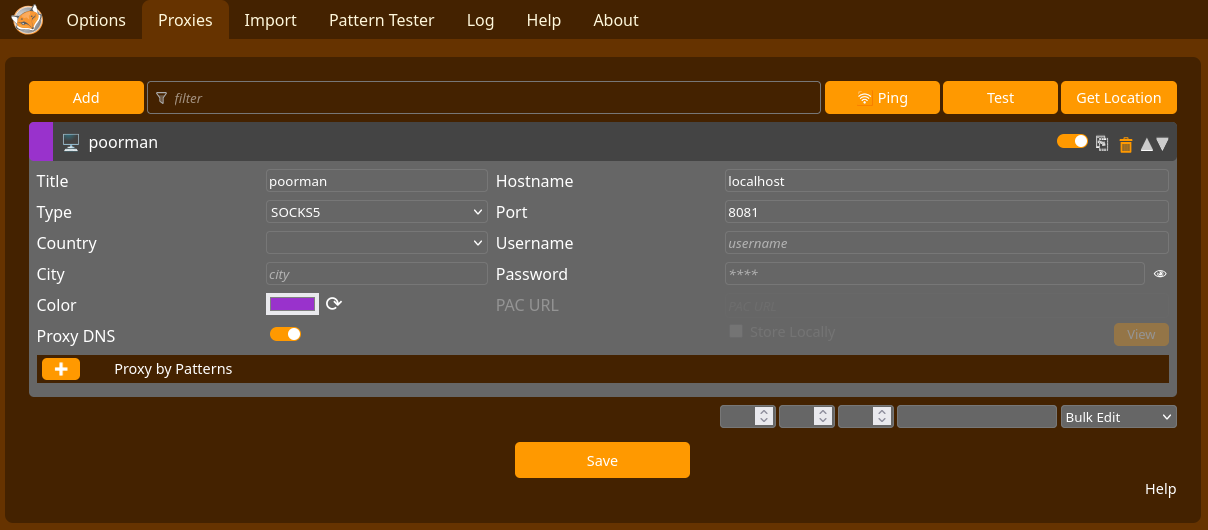
Of course, you could have skipped the apache configuration entirely and just run the ssh proxy and accessed Cockpit via localhost:9090 and/or 127.0.0.1:9090 but then you have to edit Firefox's developer settings to allow “localhost hijacking” or Firefox will get confused over which 'local' host is intended? Especially with reverse proxies, some internal web service assets will be originating from localhost (since they are behind the reverse proxy lol) and thus Firefox gets confused. There are also associated security concerns. However, if you want to avoid the apache part and just ssh with SOCKS, set the following to true:

Set this value to true and you can then access Cockpit via localhost:9090 without any issues. Before doing this, however, be aware of the risks/dangers of this approach. Just search “localhost hijacking” if you need to read up on it. I personally use the reverse proxy with apache, which although overkill, also results in avoiding this flag / dev mode hack. Other solutions involve binding Cockpit to a local IP and then proxying into the host and accessing via that IP:9090, or simply using the Cockpit flatpak, which connects via ssh and runs the Cockpit web socketing system internally, and even allows folks to connect to instances without Cockpit installed and get that familiar form factor:
I use the flatpak in addition to maintaining the reverse proxy method above. In my experience, the flatpak is noticeably slower than the reverse proxy via Firefox. They both work reliably, just much more spinning and refreshing needed in the flatpak.
— oemb1905 2026/03/29 19:23


